Category: Tips and Tricks

  • ⚡️ Fast Charging Explained: What to Know Before You Burn Your Battery

    Fast charging? It’s 2025, and we’re addicted to speed. Phones that refresh 120 times per second. Laptops that boot in under 5 seconds. And of course—chargers that promise to take your battery from 0 to 100 real quick.

    But here’s the deal: fast charging is a blessing and a trap. We have spoken about it here before but you need a refresher.

    One moment, you’re bragging that your phone charges in 25 minutes. The next, you’re wondering why your battery health is dropping faster than your screen time report.

    Before you keep chasing wattage and fancy charging bricks, let’s break down exactly how fast charging works—and what you need to know before your battery gets fried.


    ⚙️ What Is Fast Charging, Really?

    Fast charging is the tech that pumps more power (watts) into your device to charge it quicker than standard 5W or 10W charging.

    Here’s how it works:

    • Watts = Volts × Amps
    • Fast chargers boost one or both to push more juice into your phone.
    • Most phones today support 15W–45W fast charging, while some Android monsters like Xiaomi and Infinix now do 100W+. That’s insane.

    ⚠️ Fun fact: The USB-C standard technically supports up to 240W.


    🧠 But Wait—Is More Watts Always Better?

    Short answer: No.

    Your device is only going to pull as much power as it can handle. That’s why using a 120W charger on a phone that supports only 30W won’t speed things up—it’ll just warm your charger and pad your electricity bill.

    Even worse? Cheap or fake fast chargers can mess with voltage regulation and end up damaging your battery, motherboard, or charging port.


    🔥 The Hidden Cost of: Battery Health

    Let’s be honest—fast charging is convenient. But over time, it can wear down your battery faster.

    Here’s what you should know:

    • Heat is the real enemy. Charging faster = more heat = more wear on lithium-ion cells.
    • Battery health degrades quicker when fast charging is used constantly.
    • Many brands (looking at you, Xiaomi, OnePlus, and Infinix) throw huge charging numbers at you—but most don’t talk much about long-term battery life.

    Even Apple limits fast charging on iPhones to around 20W, and they do it on purpose.

    So, while charging fast won’t kill your battery overnight, it will age it faster if you rely on it 24/7.


    🛑 Before You Plug In: Read This First

    If you want to enjoy fast charging without burning through your battery’s lifespan, keep these tips in mind:

    Use the original or certified charger that came with your device. If you’re using a third-party charger, make sure it supports the same charging protocol (like USB Power Delivery, Qualcomm Quick Charge, VOOC, etc.)

    Avoid charging to 100% all the time—staying between 20% and 80% is the sweet spot for battery health.

    Unplug once full—leaving your phone plugged in overnight at high wattage isn’t doing it any favours.

    Turn off high-performance apps or mobile data while charging—especially during fast charging sessions.

    If your phone has a setting for ‘Optimised Charging’ or ‘Battery Protection’—turn it ON.


    📱 But… What About Wireless Fast Charging?

    It exists, yes. It’s flashy. But wireless charging is less efficient and generates more heat than wired fast charging. It’s the equivalent of trying to fill a bucket using a misting fan.

    Unless your wireless charger is made by the phone manufacturer (and even then), you’re better off using a good old-fashioned USB-C cable when speed and battery longevity matter.


    🚀 Final Thoughts: Speed vs. Longevity

    Fast charging is here to stay. And let’s be real—it’s a life-saver when you’ve got 4% and a meeting in 10 minutes.

    But like all good things, moderation is key.

    Don’t use fast charging as your daily default. Instead, treat it like a performance boost—handy when you need it, but not your phone’s main diet.

    Your battery (and future self) will thank you.
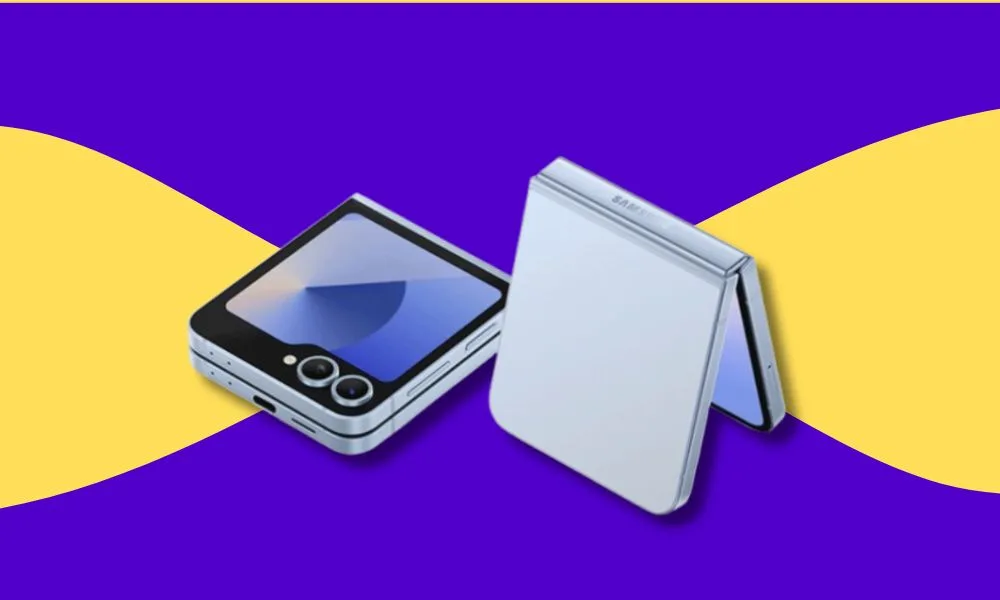
  • Galaxy Unpacked July 2025: What to Expect from Samsung’s Great Foldables, Wearables, and AI

    Samsung’s annual Galaxy Unpacked event returns on July 9th, 2025, in Brooklyn, and expectations are sky-high. From refined foldables to powerful AI features and a few surprise reveals, this year’s showcase is shaping up to be one of Samsung’s most ambitious yet.

    If you’re considering an upgrade or just curious about where mobile tech is headed, here’s a breakdown of the devices and innovations Samsung is expected to unveil — and why it matters.

    Galaxy Z Fold 7 – The Flagship Fold Gets Even Smarter

    Samsung is expected to introduce a significantly redesigned Galaxy Z Fold 7, possibly with an “Ultra” variant. The key improvements? A thinner design, larger internal display, and enhanced AI features built directly into the experience.

    What we’re hearing:

    • Sleeker form factor – slimmer when folded, more comfortable to carry.
    • Expanded inner screen – likely growing to 8.2 inches for better productivity.
    • Camera upgrades, including a potential 200MP main sensor (borrowed from the Galaxy S25 Ultra).
    • Snapdragon 8 Gen 3 or Exynos 2500 chip, depending on the region.
    • Deeper Galaxy AI integration with tools for real-time summarization, live translation, and photo editing.
    galaxy unpacked 2025 event confirmed

    Galaxy Z Flip 7 – A Stylish Update to a Fan Favourite

    The Galaxy Z Flip 7 is expected to receive thoughtful refinements rather than a complete overhaul. Expect:

    • Larger cover display (around 4 inches), offering more functionality without unfolding.
    • New colours including Blue, Coral, and Black.
    • Performance upgrade via the new Exynos 2500 processor.
    • AI capabilities such as enhanced voice dictation, photo clean-up, and contextual suggestions.

    It’s shaping up to be a smarter, more refined version of one of Samsung’s best-selling foldables.

     Galaxy Z Flip 7 FE – Making Foldables More Accessible

    For the first time, Samsung may introduce a Foldable Fan Edition (FE) the Z Flip 7 FE targeted at budget-conscious consumers.

    Expected features include:

    • A slightly smaller and simpler display setup.
    • Mid-tier processor (possibly last year’s Exynos chip).
    • 8GB RAM and 128GB storage base model.

    This could be Samsung’s move to bring foldable phones to the mainstream at a more affordable price point and it’s one worth watching.

    Galaxy Watch 8 Series – Fitness, Wellness, and Beyond

    Samsung’s upcoming Galaxy Watch 8 series is also expected to make an appearance. Early reports suggest:

    • A more efficient Exynos W1000 chipset.
    • Improved battery life and performance.
    • Tighter integration with Galaxy AI for wellness tracking, sleep coaching, and personalised health insights.
    • A potential Watch Ultra with rugged design and pro-grade sensors.

    This is part of Samsung’s continued investment in its wearable ecosystem and the AI-driven features might finally set it apart.

    Galaxy Buds Core – New Budget Option for Wireless Audio

    While information remains limited, Samsung may also introduce the Galaxy Buds Core a more affordable pair of wireless earbuds designed for everyday use. We’re expecting:

    • Clean audio experience.
    • Long battery life.
    • Possibly no Active Noise Cancellation to keep costs down.

    Project Moohan – Samsung’s XR Future on Display?

    Samsung is rumoured to tease Project Moohan, its mixed-reality headset co-developed with Google and Qualcomm (the Android platform’s response to Apple’s Vision Pro). While it may not launch at this event, we might see a sneak peek or developer-focused preview.

    With Apple’s Vision Pro already in the wild, Samsung will likely want to plant its flag in the AR/VR space soon.

    One UI 8 and Galaxy AI: The Software That Ties It All Together

    This year’s event isn’t just about hardware. Samsung is set to unveil One UI 8, based on Android 16, with Galaxy AI at its core. Expect:

    • Smarter multitasking on foldables.
    • Live translations, note summaries, and voice command enhancements.
    • On-device AI that helps with productivity, creativity, and personalisation without needing a constant cloud connection.

    Samsung’s goal is clear: make AI feel like a natural part of your everyday mobile experience.

    A Major Evolution, Not Just an Upgrade

    Samsung’s July 2025 Unpacked event feels less like a product refresh and more like a redefinition of its mobile future. Foldables are getting slimmer and smarter. Wearables are becoming more capable. And Galaxy AI is emerging as the software glue that ties it all together.

    Catch the livestream on July 9th via Samsung.com or on YouTube. Don’t forget to check back, we’ll break it all down, including pricing, availability in Nigeria, and which devices are worth your money.

  • MacBook Brilliance: What Makes It Special for Creative Pros

    If you’ve ever wondered why the MacBook has such a loyal fanbase, you’re not alone. Whether you’re considering making the switch from Windows or just curious about all the hype, this article breaks down exactly what makes the MacBook special and why it continues to dominate the laptop game.

    Why Is the MacBook So Special?

    The MacBook is known for its premium build quality, powerful performance, macOS efficiency, incredible battery life, and tight integration with other Apple devices. It’s not just a laptop; it’s an experience, one that many users say boosts productivity, creativity, and everyday usability.

    But let’s dive deeper…

    1.  Premium Design & Build Quality

    Aluminium unibody. Sleek curves. Lightweight.

    MacBooks have always stood out for their elegant, minimalist design. The all-metal build doesn’t just look good; it adds durability and makes the laptop feel premium in every sense. Compare that to the typical plastic builds in many other laptops, and you can instantly see (and feel) the difference.

    2. Apple Silicon Performance: M1, M2, M3 & M4

    Starting with the M1 chip in 2020, Apple completely transformed how laptops perform. Today’s MacBooks, powered by M1, M2, M3 and the newer M4 chips, deliver insane performance with remarkable efficiency. You get:

    • Faster app launch times
    • Effortless multitasking
    • Smooth 4K video editing
    • Zero overheating or loud fans

    Even entry-level MacBooks outperform some high-end Windows laptops, especially in creative tasks.

    3. Battery Life That Actually Lasts

    MacBook users regularly report up to 15–20 hours of battery life on a single charge, a dream if you work on the go.

    You don’t have to carry your charger everywhere, and you can binge your favourite Netflix series or jump between meetings without hunting for a power outlet.

    4.  macOS: Clean, Stable, Secure

    macOS is the brain behind the beauty. Here’s what sets it apart:

    • User-friendly interface
    • Better security out of the box
    • Less bloatware and more reliability
    • Free updates for years

    Everything just works. You don’t have to deal with endless driver updates or sudden restarts mid-task. It’s also less prone to viruses which means one less thing to worry about.

    FAQ: Is macOS better than Windows?
    Answer: It depends on your needs, but for stability, security, and design, many prefer macOS.

    5. Seamless Integration with iPhone, iPad & Apple Watch

    This is where the MacBook really shines.

    Thanks to the Apple ecosystem, your MacBook talks effortlessly with your other Apple devices:

    • AirDrop files from iPhone to Mac
    • Universal Clipboard lets you copy on one device and paste on another
    • iMessage & FaceTime right from your laptop
    • Handoff allows you to start writing an email on your iPhone and finish on your Mac

    If you already use an iPhone or iPad, getting a MacBook just makes life smoother.

    6.  Perfect for Creatives

    MacBooks are widely used by:

    • Graphic designers
    • Photographers
    • Music producers
    • Video editors
    • Writers & developers

    Why? The display quality (Retina Display), the colour accuracy, the powerful editing software options like Final Cut Pro and Logic Pro, and the general performance make it ideal for creative workflows.

    7.  Common Questions Answered

    Is the MacBook Worth the Price?

    Yes, if you value build quality, performance, battery life, and a seamless user experience. MacBooks tend to last longer, have better resale value, and offer long-term software updates.

    MacBook vs Windows Laptop: Which Is Better?

    MacBook wins on design, software stability, and ecosystem integration.
    Windows wins on affordability, wider hardware options, and gaming.
    Choose based on your priorities.

    Can I Game on a MacBook?

    Gaming isn’t the MacBook’s strong suit, though Apple is improving support. For serious gaming, a Windows laptop with a dedicated GPU might be a better pick.

    Final Verdict: What Makes the MacBook Special?

    A MacBook isn’t just about specs — it’s about the total experience. From the moment you lift the lid, everything feels thought-out, polished, and seamless. Whether you’re a student, content creator, entrepreneur, or remote worker, a MacBook often pays for itself in time saved, fewer tech issues, and better productivity.

    Ready to Get a MacBook?

    Check out Ogabassey’s laptop section for the latest MacBook deals. Whether you’re shopping new, refurbished, or on a budget, we’ll help you find the right fit.

  • 5 Cool Things You Didn’t Know Your iPhone Can Do

    iPhone? We all love it; from snapping clean photos to flexing on Instagram and replying WhatsApp messages with mad speed. But beyond the usual texting, calling, and scrolling, your iPhone is hiding some lowkey powerful features that most users have never explored. While many smartphone manufacturers are using AI to do the heavy lifting (Apple Intelligence continues to inspire little confidence for now), Apple is doing a lot of things natively!

    Whether you’re using an older iPhone like the 13 or you’ve just upgraded to the 16 Pro Max, here are five things you didn’t know your iPhone can do and trust me, you’ll want to try them immediately!


    1. Back Tap to Do Cool Stuff on your iPhone

    Did you know you can double-tap or triple-tap the back of your iPhone to make things happen?

    With the Back Tap feature, you can:

    • Take a screenshot
    • Launch your camera
    • Open WhatsApp
    • Even turn on your torchlight (very helpful during NEPA drama)

    How to activate it:
    Go to Settings > Accessibility > Touch > Back Tap. From there, choose what action you want for double or triple tap. Boom! Magic.


    2. Scan Documents Like a Boss

    Forget downloading third-party scanner apps. Your iPhone has a built-in document scanner right inside the Notes app.

    Here’s how:

    • Open the Notes app
    • Tap the camera icon
    • Select Scan Documents
    • Hold it over the paper or receipt, your iPhone will crop and adjust automatically

    Perfect for scanning ID cards, handwritten notes, or those last-minute school assignments your younger sibling throws at you. Many smartphones often require a 3rd party app to pull this off!


    3. Use Your iPhone as a Level Tool

    Need to hang a picture or fix a shelf at home? Your iPhone has a level tool that helps you make sure things are straight.

    Just open the Measure app and swipe left to find the Level tool. Place your phone on a surface, and it’ll tell you if it’s properly aligned.

    Useful for DIY projects or small home fixes. No spirit level? No problem. Use your iPhone.


    4. Hide Your Private Photos Like a Pro

    Got sensitive pictures? Maybe bank receipts, ID cards, or just selfies you don’t want others to randomly see when you’re showing a friend a meme.

    You can hide photos in a locked album with Face ID or passcode.

    Here’s how:

    • Go to Photos > Select the picture > Tap the share icon > Hide
    • Then go to Settings > Photos > Use Face ID (or passcode) to lock the Hidden Album

    Now, anyone scrolling through your gallery won’t find those private photos. You’re welcome


    5. Use Siri to Take Photos Hands-Free

    Trying to take a hands-free selfie or family photo but your timer is acting up? Just tell Siri.

    Say, “Hey Siri, take a photo” and the camera will open. While you still have to press the shutter, this is a great shortcut to prep for quick shots.

    Combine it with Voice Control (under Accessibility) and you can say things like “Turn up the volume” to snap a pic (volume up = shutter).


    Conclusion: Your iPhone is Smarter Than You Think

    You paid good money for that iPhone  so why not enjoy every feature it has to offer? These hidden tricks not only make your life easier, but also make you look like a tech wizard in front of your friends and those Android users. With this knowledge, you can also delete a lot of 3rd party apps from your phone while freeing space for apps and personal files that you really need.

    Which one is your favourite?
    And if you found this helpful, share with a friend

  • 5 Cool Things You Can Do with Your Old Phone (Instead of Letting It Rot in a Drawer)

    So, you’ve just upgraded to that sleek new iPhone or the latest Samsung Galaxy, and now your old phone is staring at you like a jealous ex. Don’t let it gather dust or end up in your forgotten tech graveyard drawer — that old phone still has some life in it!

    Here are 5 cool things you can do with your old phone that’ll make you go, “Why didn’t I think of that before?”


    1. Turn It into a Smart Home Remote

    If you’ve started building a smart home setup — think smart bulbs, smart TVs, security cameras, or Alexa/Google devices — your old phone can be your dedicated remote. Install all your smart home apps, leave the phone plugged in at a fixed spot, and boom — you’ve got a smart hub that doesn’t get interrupted by calls or texts.

     Bonus Tip: Mount it on a wall or keep it on your bedside table for quick access to lights and cameras.


    2. Use It as a Dedicated Music or Podcast Player

    Free up your new phone’s storage and battery by turning your old phone into a music or podcast player. Just install Spotify, Apple Music, YouTube Music or your favourite podcast app, connect it to Wi-Fi, and pair it with a Bluetooth speaker.

    Perfect for:

    • Gym sessions
    • Road trips
    • Kitchen dance parties while cooking egusi soup

    3. Make It a Content Creation Tool

    Still got a decent camera? Your old phone can be your backup camera or even your main camera if you’re just starting out with content creation.

    Film TikToks or Instagram Reels
    Record unboxings or product demos
    Use it for overhead shots with a tripod
    Turn it into a webcam using apps like DroidCam or EpocCam

    Content creators, this is your secret weapon without spending extra coins!


    4. Turn It into a Security Cam or Baby Monitor

    Why spend money on a new surveillance camera when your old phone can do the job?

    Just download a security camera app like Alfred Camera or Many things, and voilà — you’ve got a free indoor security cam. Great for monitoring your front door, checking on your pets, or using it as a makeshift baby monitor.

     All it needs is a power source and Wi-Fi!


    5. Donate It or Gift It

    One man’s old phone is another person’s first smartphone. Consider:

    • Donating it to a student in need
    • Giving it to your younger sibling or elderly parents
    • Dropping it off at a charity.

    Make sure you wipe your data and do a factory reset before handing it over!


    Final Thoughts

    That old phone might not be the shiny superstar anymore, but it can still play a valuable role in your tech lineup or someone else’s life. So, before you toss it aside, try one of these cool ideas and give it a second chance to shine.

  • Android Updates: Are They Really That Important?

    Earlier this month, Google gave us a sneak peek into Android 16, and it looks like it’s almost ready to hit devices. Built on the new Material U Expressive design language, the upcoming update aims to offer a more fluid, personalized user experience. But not everyone is thrilled.

    In fact, Android 16’s announcement has sparked mixed reactions across the tech space. Some enthusiasts and experts argue it’s looking a bit too familiar, drawing heavy comparisons to Apple’s iOS 18. Whether that’s a smart move or a creative misstep is still up for debate.

    What’s even more disappointing for some users is the growing list of devices that won’t be eligible for the update. If you’re holding on to a Samsung Galaxy S21 series device, you might be out of luck. Sorry folks—Android 16 won’t be rolling your way.

    While we’ll dive into the shiny new features of Android 16 in another blog post, let’s address the bigger question: Are Android updates even that important?

    Why Android Updates Matter

    1. Security First
      Every new Android version comes with critical security patches that help protect your phone from the latest threats. Without them, your device becomes more vulnerable to malware, phishing attacks, and data breaches.
    2. Performance Improvements
      Updates often include under-the-hood tweaks that make your phone faster, more efficient, and less buggy. Even if the changes aren’t always flashy, they can make everyday use smoother.
    3. New Features & UI Enhancements
      From better multitasking tools to smarter notifications, updates keep your phone feeling fresh. With Android 16, Material U Expressive promises to deliver more intuitive interactions and greater customization.
    4. App Compatibility
      Many apps are optimized for the latest Android versions. Staying current ensures you get the best performance and features from your favourite apps.
    5. Long-Term Support
      Frequent updates can extend the overall lifespan of your device. Manufacturers that commit to longer update cycles show they care about their users—and that can influence your next purchase decision.

    Final Thoughts

    Android updates might not always bring revolutionary changes, but they play a crucial role in keeping your phone secure, fast, and future-proof. So, the next time your device prompts you for an update—don’t just swipe it away. It might just be what your phone needs to stay in the game.

    Stay tuned to blog.ogabassey.com for a deeper dive into Android 16’s new features and how they stack up against iOS 18.

  • Megapixels Aren’t Everything: 4 Essential Features for a Great Smartphone Camera

    When shopping for a smartphone with a top-tier camera, it’s tempting to focus solely on megapixels. However, megapixels alone don’t guarantee stunning photos. Other critical features play a significant role in determining image quality. Here’s what you should consider:


    1. Sensor Size: The Heart of Image Quality

    A larger sensor captures more light, enhancing image clarity, especially in low-light conditions. For instance, the Xiaomi 15 Ultra boasts a 1-inch sensor, delivering exceptional detail and dynamic range.


    2. Aperture: Letting in the Light

    The aperture, indicated by f-numbers like f/1.8, determines how much light enters the camera. A wider aperture (lower f-number) allows more light, improving low-light performance and creating a pleasing background blur (bokeh). Smartphones like the Xiaomi 13 Ultra feature variable apertures to adapt to different lighting scenarios.


    3. Image Stabilization: Keeping It Steady

    Optical Image Stabilization (OIS) compensates for hand movements, reducing blur in photos and shakiness in videos. This feature is particularly beneficial in low-light settings or when capturing moving subjects.


    4. Advanced Software and Image Processing

    Beyond hardware, software plays a pivotal role in photo quality. Features like HDR (High Dynamic Range) combine multiple exposures for balanced images, while AI algorithms enhance colour accuracy and detail. Devices like the Google Pixel series are renowned for their computational photography capabilities, producing impressive results even with modest hardware.


    Conclusion

    While megapixels are a factor, they don’t tell the whole story. Prioritizing sensor size, aperture, stabilization, and software processing will lead you to a smartphone camera that truly excels.

  • Choosing the Perfect Smartwatch: Samsung Edition

    In 2025, Samsung’s Galaxy Watch lineup offers a diverse range of smartwatches tailored to various lifestyles and preferences. Whether you’re a fitness enthusiast, a tech-savvy professional, or someone seeking a stylish accessory, there’s a Samsung smartwatch designed for you. This guide will help you navigate through the Galaxy Watch Ultra, Watch 7, 6, 5, and 4 series, highlighting their features, compatibility with Samsung smartphones, and assisting you in making an informed choice.


    Samsung Galaxy Watch Series Overview

    Samsung’s Galaxy Watch series has evolved over the years, introducing new features and improvements with each iteration. Here’s a brief overview:

    • Galaxy Watch Ultra: Samsung’s most rugged and feature-rich smartwatch, designed for adventurers and fitness enthusiasts.
    • Galaxy Watch 7: The latest in the series, offering advanced health tracking and performance enhancements.
    • Galaxy Watch 6: A balanced smartwatch with a blend of style and functionality.
    • Galaxy Watch 5: Known for its durability and comprehensive health features.
    • Galaxy Watch 4: The pioneer of Wear OS integration in Samsung watches, offering a solid foundation of features.

     Matching Smartwatches with Samsung Phone Models

    To ensure optimal performance and feature compatibility, it’s essential to pair your Galaxy Watch with a compatible Samsung smartphone. Here’s a guide:

    1. Galaxy Watch Ultra

    • Best Paired With: Samsung Galaxy S25 Ultra, Galaxy Z Fold6News.com.au
    • Why: These flagship phones complement the Ultra’s advanced features, ensuring seamless integration and performance.

    2. Galaxy Watch 7

    • Best Paired With: Samsung Galaxy S24 S25, Galaxy Z Flip6
    • Why: The Watch 7’s enhanced health tracking and performance are best utilized with the latest Samsung smartphones.

    3. Galaxy Watch 6

    • Best Paired With: Samsung Galaxy S23 series.
    • Why: Offers a balanced experience, matching well with the S23’s capabilities.

    4. Galaxy Watch 5

    • Best Paired With: Samsung Galaxy S22 series
    • Why: Provides comprehensive health features that align with the S22’s functionalities.5. Galaxy Watch 4
    • Best Paired With: Samsung Galaxy S21 series
    • Why: Introduced Wear OS integration, making it a good match for the S21’s features.
    FeatureGalaxy Watch UltraGalaxy Watch 7Galaxy Watch 6Galaxy Watch 5Galaxy Watch 4
    Release DateJuly 2024July 2024August 2023August 2022August 2021
    Sizes Available47mm40mm, 44mm40mm, 44mm40mm, 44mm40mm, 44mm
    Display1.5″ Super AMOLED1.3″/1.5″ AMOLED1.3″/1.5″ AMOLED1.2″/1.4″ AMOLED1.2″/1.4″ AMOLED
    Battery LifeUp to 100 hrs (Low Power Mode)Up to 2 daysUp to 2 daysUp to 2 daysUp to 1.5 days
    DurabilityIP68, MIL-STD-810HIP68IP68IP68IP68
    Health FeaturesAdvanced (e.g., sleep apnea detection)Enhanced sensorsComprehensive trackingComprehensive trackingBasic tracking
    Storage32GB32GB16GB16GB16GB
    ProcessorExynos W1000Exynos W1000Exynos W930Exynos W920Exynos W920
    Operating SystemWear OS 5Wear OS 5Wear OS 4Wear OS 3Wear OS 3
  • Five Accessories to Enhance Your Work-From-Home Experience (With Recommendations)

    Working from home can be a dream—or a nightmare—depending on your setup. If you want to stay productive, comfortable, and distraction-free, investing in the right accessories is a game-changer. Here are five must-have accessories, along with solid recommendations to upgrade your home office.


    1. Ergonomic Chair – Comfort Meets Productivity

    Sitting for hours in a regular chair can cause back pain, poor posture, and fatigue. An ergonomic chair provides proper lumbar support, adjustable height, and better cushioning to keep you comfortable and productive.

    Top Picks:

    Herman Miller Aeron – A premium option with exceptional lumbar support, breathable mesh, and adjustable features. Pricey but worth it.
    SIHOO M18 Ergonomic Chair – A budget-friendly alternative with great back support, adjustable armrests, and a mesh design for airflow.


    2. Noise-Canceling Headphones – Block Out Distractions

    Distractions like household noise, barking dogs, or street sounds can break your concentration. Noise-canceling headphones let you focus by drowning out background noise, making them essential for remote work.

    Top Picks:

    Sony WH-1000XM5 – Industry-leading noise cancellation, excellent sound quality, and great battery life.
    Bose QuietComfort 45 – Comfortable, lightweight, and delivers premium noise cancellation for long work sessions.


    3. External Monitor – Expand Your Screen Space

    A small laptop screen can feel restrictive, especially if you multitask. An external monitor gives you extra screen real estate, helping with productivity and reducing eye strain.

    Top Picks:

    Dell UltraSharp U2723QE – A 27-inch 4K monitor with excellent color accuracy, USB-C support, and an anti-glare coating.
    LG 32UN880-B UltraFine Ergo – A 32-inch 4K monitor with an ergonomic arm mount, making it easy to adjust for the perfect position.


    4. Wireless Keyboard and Mouse – Boost Comfort and Efficiency

    Typing on a laptop keyboard for extended hours can be uncomfortable. A wireless keyboard and mouse combo improves ergonomics and declutters your desk.

    Top Picks:

    Logitech MX Keys + MX Master 3S – A high-end combo with comfortable key travel, silent typing, and a precision mouse ideal for productivity.
    Keychron K2 + Logitech M720 – A budget-friendly yet excellent setup, featuring a mechanical keyboard and an ergonomic multi-device mouse.


    5. Smart Desk Lamp – Improve Lighting and Reduce Eye Strain

    Good lighting helps prevent eye strain and creates a comfortable work atmosphere. A smart desk lamp with adjustable brightness and color temperature makes a big difference.

    Top Picks:

    BenQ e-Reading LED Desk Lamp – Provides wide, flicker-free lighting with adjustable color temperature for optimal comfort.
    TaoTronics LED Desk Lamp – A budget-friendly choice with touch controls, USB charging, and multiple lighting modes.


    Final Thoughts

    A well-equipped home office can boost productivity, reduce stress, and make working from home more enjoyable. Investing in these accessories will help you work smarter, not harder.

    Which of these accessories do you already have, and which are on your wishlist? Let us know in the comments!

  • The Ultimate Checklist for Buying a Used iPhone in 2025

    Buying a used iPhone is a great way to save money while still enjoying Apple’s ecosystem. But not all second-hand deals are worth it. Some phones may have hidden defects, poor battery life, or even be locked. To help you make a smart purchase, here’s a checklist of what to check before buying a used iPhone.

    1. Check the Storage Capacity

    A minimum of 128GB storage is recommended. iPhones don’t have expandable storage, so ensure you have enough space for apps, photos, and updates.

    2. Confirm iOS Version & Update Support

    Make sure the iPhone supports iOS 17 or newer for security updates and app compatibility. Avoid older models that might stop receiving updates soon.

    3. Inspect the Battery Health

    Go to Settings > Battery > Battery Health & Charging and check the Maximum Capacity percentage. A healthy battery should be at 80% or higher for decent battery life. If it’s lower, the phone may need a battery replacement soon.

    4. Test Face ID or Touch ID

    For iPhones with Face ID (iPhone X and newer) or Touch ID (iPhone SE, 7, 8), ensure these unlock features work properly. If Face ID isn’t setting up, the phone may have internal damage.

    5. Check for Activation Lock & iCloud Status

    Go to Settings > General > About and see if the iPhone is linked to an iCloud account. If it asks for someone else’s Apple ID, do not buy it—it could be stolen.

    6. Verify IMEI & Carrier Lock Status

    Dial *#06# to get the IMEI number and check it on sites like IMEI.info to ensure the phone isn’t blacklisted. Also, confirm whether it’s unlocked or restricted to a specific carrier.

    7. Inspect the Display & True Tone Feature

    ✅ Check for cracks, scratches, or dead pixels.
    ✅ Test True Tone in Settings > Display & Brightness (if available).
    ✅ If True Tone is missing, the screen may have been replaced with a non-genuine part.

    8. Test the Camera Quality

    iPhones are known for their cameras, so ensure they’re working properly. Open the Camera app and test:
    ✅ Main camera (at least 12MP)
    ✅ Ultra-wide & telephoto lenses (if available)
    ✅ Portrait mode & Night mode
    ✅ Video recording (check for blurry or shaky footage)

    9. Test the Speakers & Microphone

    ✅ Play a song at full volume to check for distortion.
    ✅ Make a call or use Voice Memos to ensure the microphone works well.

    10. Check All Ports & Buttons

    ✅ Test the Lightning or USB-C charging port by plugging in a charger.
    ✅ Inspect the power and volume buttons for responsiveness.
    ✅ If the phone has a physical Home button (iPhone 8 or SE), ensure it clicks properly.

    11. Verify 5G & Network Connectivity

    If you’re buying an iPhone 12 or newer, ensure 5G works with your network. Some models, especially international versions, may have limited band support.

    12. Ask for the Box & Accessories (If Available)

    While not essential, getting the original box, charger, and receipt adds to the phone’s authenticity and resale value.

    Final Thoughts

    Buying a used iPhone can be a great deal if you take the time to inspect it properly. Always check battery health, iCloud status, and hardware functionality before making a purchase. If possible, buy from a trusted seller who offers a warranty or return policy.

    What’s your go-to tip when buying a second-hand iPhone? Let us know in the comments!